
There are several reasons why a reset might be necessary:
You moved into a new home and want to remove all previous user codes.
You bought a used lock or inherited one from a previous owner.
The lock is malfunctioning, frozen, or not responding to commands.
You’ve lost the programming code or key and can’t reprogram it normally.
Resetting the lock restores it to factory default settings, allowing you to reprogram it as if it were brand new.
Step-by-Step: How to Reset a Kwikset Smart Lock Without a Key
⚠️ Important: Always ensure the door is open and unlocked before starting the reset process — this prevents accidental lockouts.
1. Locate the Program Button
Most Kwikset smart locks (like Kevo, Halo, or SmartCode models) have a small program or reset button inside the cover or near the battery compartment.
Remove the back panel of your lock to access it.
2. Hold the Program (or Reset) Button
Press and hold the program button for about 30 seconds until you hear a long beep or see the LED light flash red.
This indicates the lock has started the factory reset process.
3. Wait for the Beep or Flash
After holding for 30 seconds, release the button.
You should see the LED light flash green or hear a confirmation beep — that means your lock has been successfully reset.
4. Reinstall the Batteries
If you removed the batteries during the process, reinsert them and test the lock. It should no longer recognize any previous codes or keys.
5. Reprogram Your Lock
Now that your lock is reset, you can:
Create a new master code
Add user codes
Connect to your smart home app (if applicable)
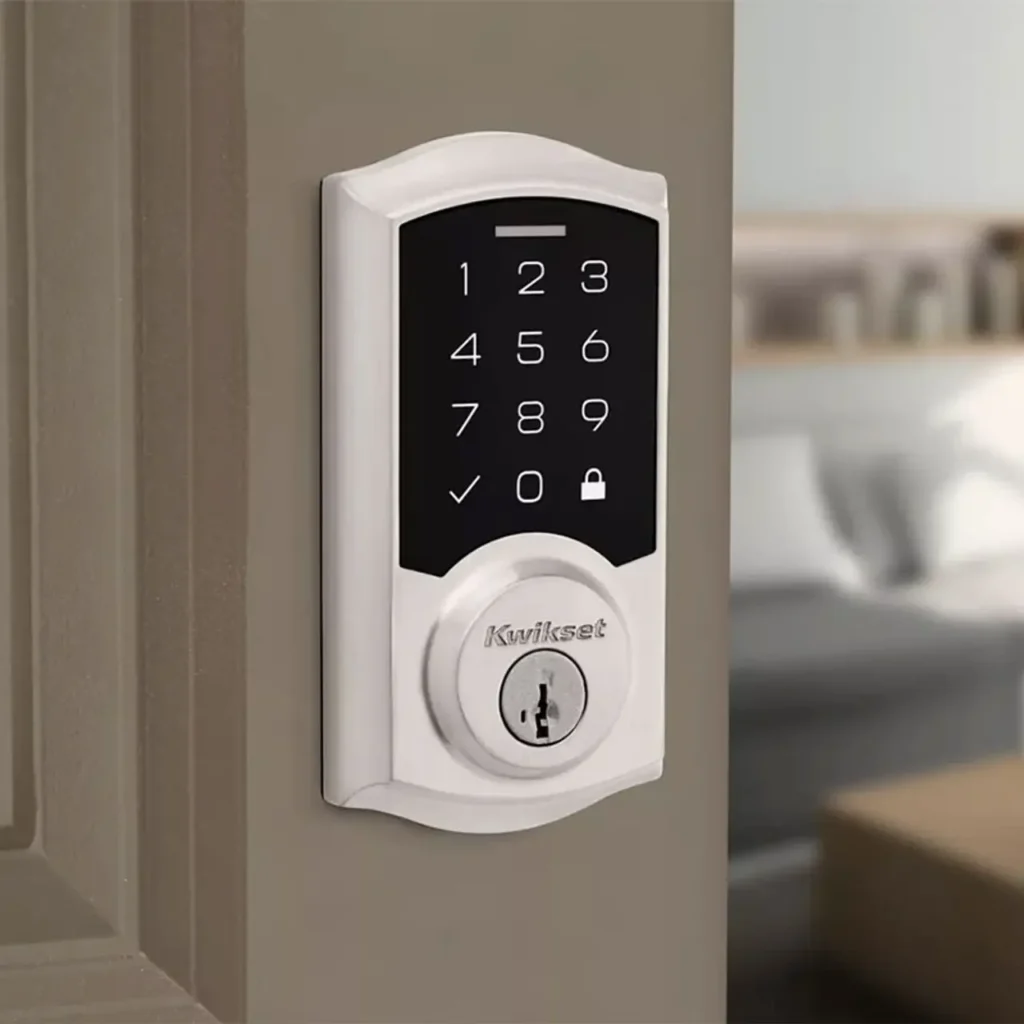
What If the Reset Doesn’t Work?
If your Kwikset lock doesn’t respond:
Check that the batteries are new and properly installed.
Ensure the reset button is pressed firmly (some models require a pin or paperclip).
Try removing the batteries for 1 minute before repeating the reset process.
Consult the Kwikset user manual for your specific model (codes can vary slightly).
If the lock still refuses to reset, it may have firmware or mechanical damage — in that case, it’s best to contact a professional locksmith.
Professional Help From My Locksmith Service
At My Locksmith Service, we handle all types of lock repair and smart lock reprogramming — including Kwikset, Schlage, Yale, and more.
Our certified technicians can:
Reset or rekey your Kwikset lock without damage
Replace or reprogram smart lock systems
Install or upgrade to new smart lock models
Troubleshoot Bluetooth, Wi-Fi, or app connectivity issues
If your Kwikset smart lock is not resetting properly, or you’re unsure about doing it yourself, our experts can handle it on-site — quickly and safely.
Pro Tips for Kwikset Smart Lock Users
Change your access codes regularly for better security.
Keep a backup of your programming code in a secure place.
Avoid cheap batteries — low voltage can cause malfunction.
For rental properties, reset locks between tenants to ensure full security.
Resetting a Kwikset Smart Lock without a key may sound complicated, but with the right steps — and a bit of patience — you can restore your lock to factory settings in just a few minutes.
If the process doesn’t go smoothly, don’t risk damaging your smart lock.
Contact My Locksmith Service for professional assistance and peace of mind.